Boosting your WiFi signal : 8 effective methods in 2026
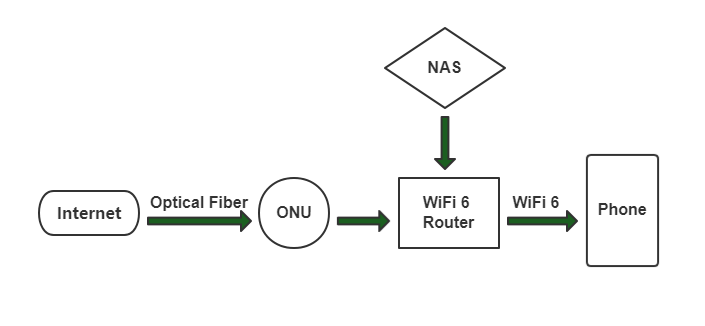
Contents
Your WiFi signal weakens in the evening. The video cuts out at the bottom of the garden. Your bedroom only gets 1 bar out of 4. The video call from the kitchen lags as soon as someone turns on the microwave. These problems are universal and affect 70% of French households according to Arcep.
The good news : in 80% of cases, a few free adjustments (reboot, placement, 5 GHz band) solve the problem. For the remaining 20%, you need to invest in a better router, a repeater or a mesh system. This guide lists 8 methods ranked from the simplest to the most impactful, with concrete recommendations in 2026.
1. Reboot the router
The simplest and often effective method. After several weeks of operation, a router's firmware accumulates allocated memory, orphaned connections and desynchronised ARP tables.
Recommended steps :
- Check the Internet connection from the router interface
- Update the firmware to the latest version (security + performance fixes)
- Cut the power for 30 seconds (not just 5 seconds)
- Switch back on and wait for the full sync (2-5 min)
Schedule an automatic weekly reboot if your router allows it (recent Freebox, Livebox, Bbox offer this).
2. Secure against "WiFi thieves"
Neighbours or people within range can use your WiFi without your consent, saturating your bandwidth. Signs to watch for in the router interface :
- More connected devices than expected
- Heavy traffic while you are away
- Unknown devices in the connection list
Countermeasures :
- Complex WiFi password : 16 characters minimum, alphanumeric + special
- WPA3 enabled (on WiFi 6+ routers)
- WPS disabled (known vulnerability)
- Separate guest network for visitors
- MAC filtering to allow access only to your devices (advanced level)
A WiFi 6 Mesh AX3000 router supports WPA3, isolated guest networks and MAC filtering via mobile app — features often absent from entry-level operator boxes.
3. Optimise router placement
Golden rules :
- Central position in the house, not in a corner
- Height 1.5-2 m off the floor (shelf, wall), never on the floor
- Away from interference : microwave oven, fridge, TV, analogue baby monitor, aquarium
- Away from metal : cabinet, radiator, electrical box
- Antennas oriented differently : one vertical + one at 45° for a multi-storey house
- Avoid damp rooms : the bathroom (steam) absorbs the signal
5-minute placement test
Download a "WiFi Analyzer" app (free on Android, NetSpot on macOS). Measure the signal (in dBm) in each room : > -50 dBm excellent, -60 to -50 good, -70 to -60 average, < -70 weak. Move your router a few metres and redo the test — the impact can be huge.
4. Switch to the 5 GHz band
If your router is dual-band, force your key devices (TV, work-from-home PC, console) onto the 5 GHz band :
- Less interference (not shared with Bluetooth, microwave)
- Higher throughput (up to 4.8 Gbps in WiFi 6 vs 600 Mbps in 2.4 GHz)
- More non-overlapping channels (24 in 5 GHz vs 3 in 2.4 GHz)
Full details : WiFi 2.4 GHz vs 5 GHz, which band to choose.
5. Use a WiFi repeater
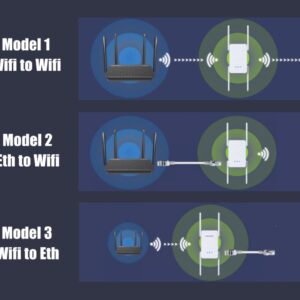
If your house is large (> 100 m²) or has several floors, a single router is no longer enough. A WiFi repeater picks up the main router's signal and rebroadcasts it halfway to the dead zones.
Advantages :
- Quick setup (5 min via WPS or app)
- No additional cabling
- Compatible with most operator boxes
Drawbacks :
- Halves the throughput with WiFi backhaul (no Ethernet between repeater and router)
- May create a different SSID, forcing a manual switch
- Does not always handle roaming smoothly between router and repeater
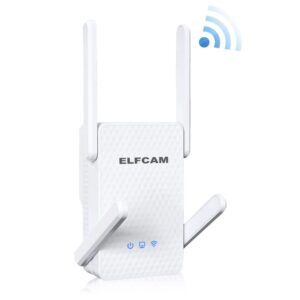
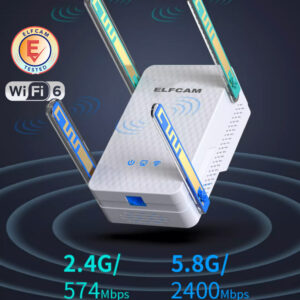
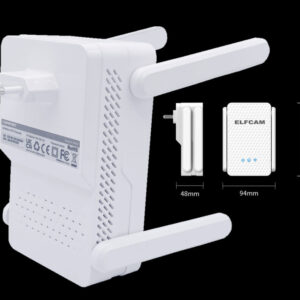
A modern WiFi 6 AX3000 repeater mitigates these limits : 160 MHz channels, OFDMA, optimised handover. A good cost/performance trade-off for a simple extension.
6. Install a mesh network
The ultimate solution to efficiently cover a whole house. A mesh system is made up of 2-4 cooperative nodes (1 main router + 1-3 satellites) that form an intelligent mesh network :
- Single SSID throughout the house
- Automatic roaming between nodes (video call + moving around = no drop)
- Self-healing : if a node goes down, the others take over
- Optimised backhaul : dedicated band or Ethernet for maximum performance
- Mobile app management : diagnostics, parental controls, guest network
See our step-by-step installation guide : Set up a mesh WiFi.
Pro tip : Ethernet backhaul
If you can run a Cat 6 Ethernet cable between your main router and the mesh satellites, do it. The "wired backhaul" frees up 100% of the WiFi band for clients and multiplies performance by 2-3. Compatible with eero, Google Nest, TP-Link Deco, ASUS ZenWiFi and our AX3000 mesh router.
7. Change the WiFi channel
In a building or dense area, dozens of neighbouring WiFi networks saturate the default channels. Identifying the least congested channel can double your throughput :
- Use WiFi Analyzer (Android) or NetSpot (PC/Mac) to scan your environment
- In 2.4 GHz : choose channel 1, 6 or 11, the least used by your neighbours
- In 5 GHz : more flexibility, test channels 36, 40, 44, 48 (non-DFS) or 100+ (DFS, often emptier)
- Configure manually in the router's admin interface
8. Move to WiFi 6 / 6E / 7
If your operator box runs WiFi 4 (802.11n) or WiFi 5 (802.11ac), upgrading to WiFi 6 is the best investment :
- +40 to 50% throughput on 1 client
- ×3 to ×5 in multi-client thanks to OFDMA
- +30-50% battery life for smartphones and IoT devices (TWT)
- WPA3 for enhanced security
Detailed comparison : WiFi 6 vs WiFi 5.
Recommended hardware to improve your WiFi
- WiFi 6 Mesh AX3000 router 2.5 Gb WAN — complete upgrade of your fibre box
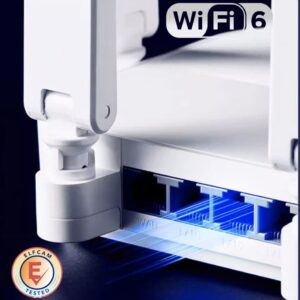
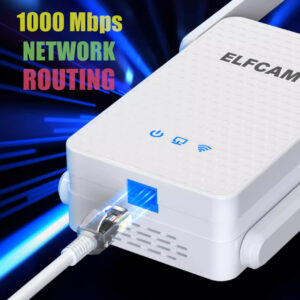
- WiFi 6 AX3000 repeater — fast, high-performance extension
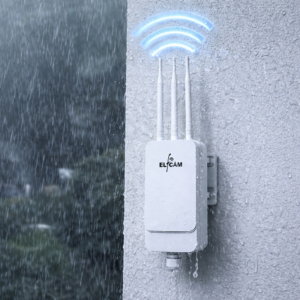
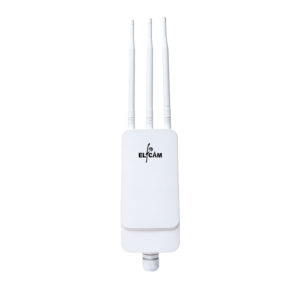
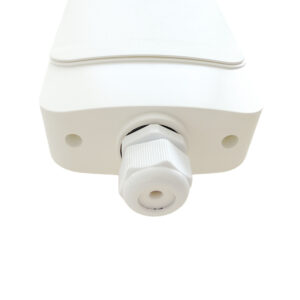
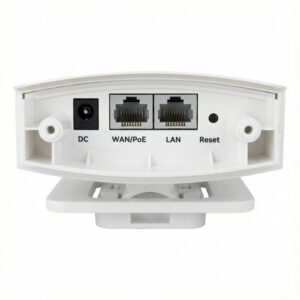
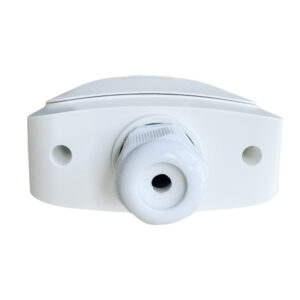
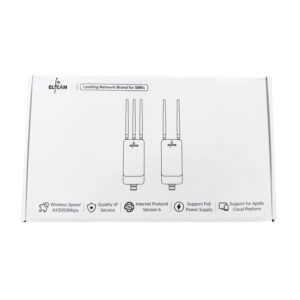
- Outdoor WiFi 6 IP67 AX3000 AP — covers garden, terrace, outbuilding
- Cat 6/7/8 Ethernet cables — wired mesh backhaul
- PoE switches — power the APs over a single cable







FAQ — Boosting the WiFi signal
1Why is my WiFi slow in the evening ?
- Operator network saturation : at peak hours, even fibre can slow down
- Neighbourhood WiFi saturation : all the neighbours are on their WiFi at the same time → interference
- Cumulative household usage : 4K TV + console + video call + phones
2Repeater or mesh : which to choose ?
- Repeater : a single dead zone to cover, tight budget (50-100 €), temporary solution
- Mesh : overall coverage, house > 100 m², several floors, budget 200-400 €
3Can I mix a router and repeater from different brands ?
4What is the right height to place a router ?
5How do I orient my router's antennas ?
- Single-storey house : all vertical (uniform H polarisation)
- Multi-storey house : one vertical (ground floor) + one at 45° (transition) + one horizontal (upper floor)
- Duplex : same idea, antenna at 45° to cover two levels
6Insufficient WiFi throughput despite fibre ?
- Router on WiFi 5 (caps out quickly)
- Old client device (WiFi 4, 2.4 GHz only)
- Distance/walls that degrade the signal
7WiFi in the garden, how to do it ?
- Move the router closer to a window on the garden side (free, effective over 5-10 m)
- WiFi repeater in a room near the garden
- Weatherproof outdoor WiFi AP IP67 : our WiFi 6 IP67 AX3000 AP, PoE powered, 30-50 m coverage
8Elfcam delivery and warranty ?
In summary
Improving your WiFi signal is done in stages :
- Free : reboot, placement, securing, 5 GHz band, channel
- Moderate upgrade (50-150 €) : WiFi 6 repeater
- Major upgrade (150-400 €) : WiFi 6 router or mesh, outdoor IP67 AP
Start with the free methods : they solve 80% of problems. For the rest, a WiFi 6 Mesh AX3000 router with Cat 6 Ethernet backhaul is the winning combination in 2026.